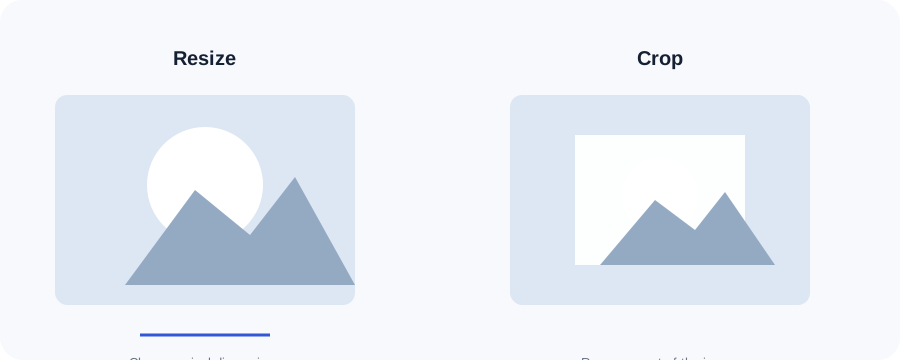
Cropping removes part of an image. It is useful when the original composition contains unnecessary space or when a destination requires a fixed aspect ratio such as a square thumbnail.
1Choose a file
Select an image or drag it into the tool.
2Adjust the options
Use the available setting for the task and keep the result practical.
3Review and download
Check the output before using it on your site, email or app.
Original ImageRW diagram: Image Cropper.
Before you start
Cropping changes composition, not just file size. If the subject must stay in frame, keep the original and choose a crop that leaves enough space around important details.
Cropping solves a different problem from resizing
If you resize a wide image into a square, the whole image may become distorted. Cropping preserves proportions by removing areas outside the chosen frame.
Aspect ratio matters
The relationship between width and height determines the shape of the result. Square images use equal dimensions, while common landscape layouts are wider than they are tall.
Where cropping is useful
Product cards, profile images, article thumbnails and social graphics often benefit from predictable framing. Decide what must remain visible before choosing the crop.
Centered crop limitations
This lightweight tool creates a centered crop. If the subject is near an edge, a dedicated visual crop editor with a movable frame may give better control.
Keep the source
Cropping should create a new derivative. Keep the original so you can make another composition later without losing the source information.
Frequently asked questions
Can I create a square image?
Yes. Enter the same width and height.
Can I move the crop area?
This simple version uses a centered crop.
Does cropping modify my original?
No.
Keep your original file.Image processing creates a derivative. Retaining the original makes it easier to create another size, crop or format later.
Related ImageRW resources