How to Reduce Image File Size Without Making It Look Bad
ImageRW Guide · Practical image workflow
Good image optimization is a sequence of small decisions rather than one extreme compression setting.
Quick takeaways
- Reduce unnecessary pixels before pushing compression too far.
- Inspect text, edges and texture at the actual display size.
- Keep a high-quality original for future derivatives.
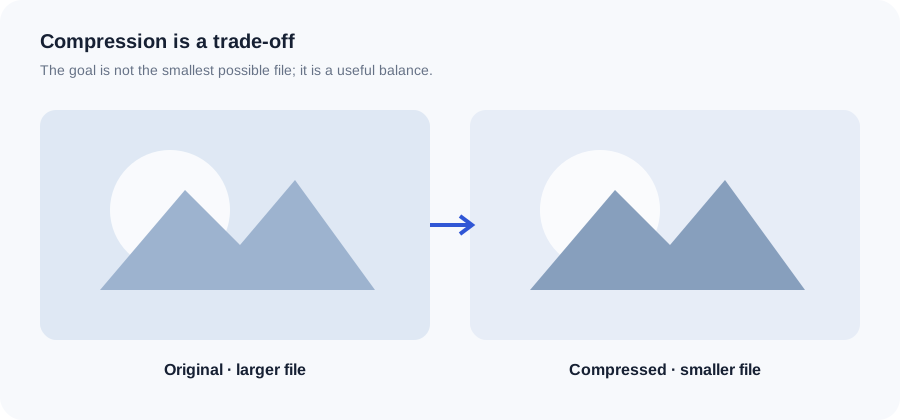
Original ImageRW diagram: How to Reduce Image File Size Without Making It Look Bad.
Remove unnecessary pixels
If an image is far larger than its display area, resizing can save bytes before any lossy compression is applied.
Choose the right encoder
Different formats respond differently to the same source. Test the format that matches the image rather than forcing every asset through one preset.
Lower quality gradually
Move quality down in small steps and inspect areas with texture, text and sharp edges. Stop when the visual difference becomes meaningful.
Judge at real size
An image can look imperfect when zoomed to 400% but be completely acceptable at its actual display size. Conversely, tiny text may only become obviously damaged when seen in context.
Keep an original
Preserving a high-quality source makes it easier to generate a better derivative later.
Document successful settings
If you manage a large site, record a few practical defaults for recurring asset types and revisit them when your workflow changes.
A quality-check routine
After creating an optimized copy, inspect edges, fine text, faces, hair, foliage and gradients. These areas often reveal compression artifacts sooner than flat areas do. If the image still looks clean at its real display size, there may be little benefit in pushing compression further.
Frequently asked questions
Should I always use the lowest quality that looks okay?
Not necessarily. Leave some margin for the destination and inspect representative files.
Can compression remove metadata?
Some tools and encoders may handle metadata differently; do not assume every converter behaves the same way.
Why does the same quality setting look different on different images?
Image content has a major effect on compression artifacts and output size.
Image content varies. Test representative files, keep the original and judge the output in the context where people will actually see it.