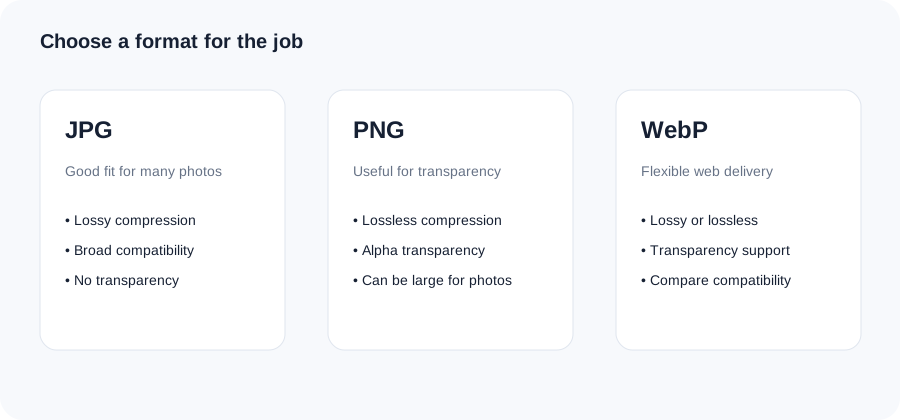
PNG is excellent for lossless graphics and transparency, while JPG is often more compact for photographs. Converting to JPG can reduce file size, but transparency cannot be retained because JPG does not support an alpha channel.
1Choose a file
Select an image or drag it into the tool.
2Adjust the options
Use the available setting for the task and keep the result practical.
3Review and download
Check the output before using it on your site, email or app.
Original ImageRW diagram: PNG to JPG Converter.
Before you start
JPG does not support transparency, so transparent areas need a replacement background. Keep the PNG if you may need the transparent version later.
Why convert PNG to JPG?
A photographic PNG can contain far more data than necessary for web or email use. JPEG compression is often more efficient for photographs with continuous tones.
Transparency is lost
JPG does not support transparency. This converter places transparent areas over a white background before creating the JPEG.
Quality is a trade-off
Higher JPEG quality generally keeps more detail and creates larger files. Lower quality can create blockiness, ringing around text or smeared textures.
When PNG is still better
Keep PNG for transparent graphics, logos and some screenshots where sharp edges matter more than maximum compression.
A practical workflow
Make a JPG copy, compare it with the source at the intended display size, inspect small text and edges, then keep whichever format fits the destination.
Frequently asked questions
Does JPG support transparency?
No. Transparent areas are placed over white in this converter.
Will JPG always be smaller?
No, but it is often efficient for photographic images.
Can I control quality?
Yes, with the quality control above.
Keep your original file.Image processing creates a derivative. Retaining the original makes it easier to create another size, crop or format later.
Related ImageRW resources